

Picture a small office where one laptop has been acting strangely. It’s slow to start, a fan runs when nobody’s doing anything, and there’s a program on the taskbar nobody remembers installing. Nothing is obviously broken. The owner’s question is a reasonable one: “Is something wrong with this machine, and how do I find out without buying another subscription?”
Security software that monitors laptops continuously is a real cost for a small business, and we’d rather tell you what you can check for free. Two free tools, Microsoft’s Sysinternals Suite and Wireshark, can answer three useful questions: what is running, what starts on its own, and who the laptop is talking to. Here’s how to detect malware on a laptop with them, step by step.
One honest note up front. This is triage, not a guarantee. A clean result lowers your concern and doesn’t prove the machine is clean. Think of it as a health check.
Ground rules
Before you try to detect malware on a laptop, a few ground rules:
- Only check a laptop you own or are authorized to examine. On a work laptop, ask whoever manages IT first.
- Download tools only from official sources, Microsoft for Sysinternals and wireshark.org for Wireshark.
- Save your work first, because one step restarts the computer.
Step 0: Start with the free scanner already on your laptop
Windows includes a free scanner, and it’s the cheapest way to start when you want to detect malware on a laptop.
Open Windows Security > Virus & threat protection > Scan options and run a Full scan. Then run the Microsoft Defender Offline scan from the same screen. It restarts your PC and scans from outside the normal Windows environment, which helps with malware that hides from Windows itself. It takes about 15 minutes. If BitLocker is on, suspend it first, or you may be asked for your recovery key on restart.
For a second opinion, Microsoft also offers a free Microsoft Safety Scanner. It expires 10 days after you download it, so grab a fresh copy each time, and it isn’t a substitute for ongoing protection.
If both come back clean and you’re still uneasy, continue.
Get the tools
Sysinternals Suite: a free toolkit from Microsoft. Download it, extract it to a folder, and run the tools as administrator.
Wireshark: a free network analyzer from wireshark.org. The Windows installer includes the component it needs to capture traffic.
Step 1: Process Explorer (what is running?)
Think of it as a much better Task Manager. Open it as administrator and turn on two options:
- Options > Verify Image Signatures
- Options > VirusTotal.com > Check VirusTotal.com
The VirusTotal check sends file fingerprints (hashes) to VirusTotal and shows how many security engines flagged each file. Uploading the files themselves is a separate option, and we’d leave it off for anything private.
Scan the list for:
- No publisher or description, or a signature that doesn’t verify
- A suspicious location. Real programs usually live in Program Files or Windows. Something running from Temp, Downloads, or AppData deserves a closer look.
- Look-alike names such as svch0st.exe. The real svchost.exe runs from C:\Windows\System32.
- Odd behavior, such as an Office app launching PowerShell or a command prompt
- A VirusTotal flag. One engine flagging a file isn’t proof, since legitimate software gets false positives.
Step 2: Autoruns (what starts on its own?)
Malware usually wants to survive a restart, so it adds itself to something that runs at startup. Autoruns lists everything that does.
Open it as administrator, go to Options > Filter Options, and enable Verify Code Signatures, Hide Microsoft Entries, and Hide Windows Entries. Then Rescan. What’s left is mostly third-party software, so anything unexpected stands out.
Check the Logon, Scheduled Tasks, Services, and Drivers tabs for:
- Unsigned entries or entries with no publisher
- Paths inside your user profile or Temp folders
- Names that imitate real software
- Entries pointing to files that no longer exist
Two cautions. If you’re unsure about an entry, uncheck it to disable it rather than deleting it, because that’s reversible. And hiding Microsoft entries can mask abuse of legitimate programs, so odd command lines deserve a look even under Microsoft entries.
Step 3: TCPView (who is it talking to?)
TCPView shows every network connection and which program owns it. Look for:
- An unfamiliar program with a persistent connection to an address you don’t recognize
- A program running from one of those odd folders that is also connecting out
Cross-check anything unusual against Process Explorer. A strange name in TCPView plus an unsigned file in a Temp folder is a much stronger signal than either alone.
Step 4: Wireshark (what names is it looking up?)
DNS works like a phone book: your laptop looks up a website’s name to find its address. Malware often has to look up the server that controls it, which makes DNS a useful place to detect malware on a laptop.
Start a capture in Wireshark on your active connection (Wi-Fi or Ethernet). Close your browsers and apps, and let the laptop sit idle for about 10 minutes. Type dns in the display filter.
Look for:
- Domains you can’t connect to anything you use
- Long, random-looking names
- Repeating lookups at regular intervals, which can indicate a program checking in on a schedule
- Lots of failed lookups. The filter dns.flags.rcode == 3 shows them.
Expect plenty of normal traffic from Windows Update, OneDrive, and your browsers. You’re looking for what doesn’t fit, and what repeats.
Two limits. Wireshark shows the lookup, not which program made it, so match it against TCPView. And many browsers can encrypt DNS, which won’t appear as plain DNS in your capture. Also treat capture files as sensitive: don’t share them, and delete them when you’re done.
Putting the signals together to detect malware on a laptop
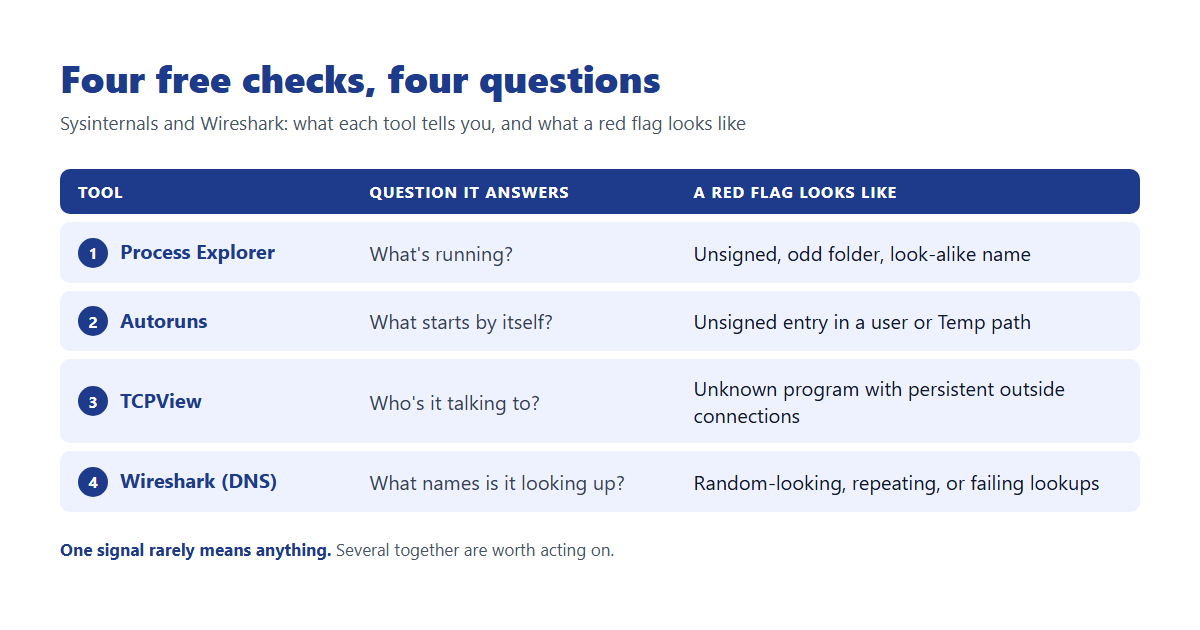
| Tool | Question it answers | A red flag looks like |
|---|---|---|
| Process Explorer | What’s running? | Unsigned, odd folder, look-alike name |
| Autoruns | What starts by itself? | Unsigned entry in a user or Temp path |
| TCPView | Who’s it talking to? | Unknown program with persistent outside connections |
| Wireshark (DNS) | What names is it looking up? | Random-looking, repeating, or failing lookups |
One signal rarely means anything, since plenty of harmless software is unsigned. But an unsigned file, in an odd folder, with a startup entry, that also connects out is worth acting on.
If something looks wrong
- Disconnect from the network.
- Don’t start deleting things. Write down names and file paths, and take screenshots.
- Run the Defender Offline scan from Step 0.
- From a different, clean device, change the passwords for accounts used on that laptop, and turn on multi-factor authentication where it isn’t already.
- If you’re still unsure, back up your personal documents (not programs) and reinstall Windows. It’s more work and it’s the most reliable reset.
What this can’t do, and when to call a professional
Trying to detect malware on a laptop by hand gives you a snapshot, not continuous monitoring. They can miss threats that hide well, such as malware that lives only in memory, malicious browser extensions, or deep system-level compromises. They take judgment, and false alarms are common if you’re new to it.
They also don’t scale. Learning to detect malware on a laptop is reasonable for one machine. Checking a whole team’s is not.
It’s time to bring someone in if:
- The laptop holds client or financial data, and you can’t rule out a problem
- You find something suspicious and aren’t sure what it is
- More than one device is acting oddly
- You’d just rather know, without spending your own evenings on it
This is where managed endpoint protection earns its cost: constant monitoring, alerts, and someone who knows what a normal laptop looks like. If you’d like a straightforward look at where your business stands, our free IT assessment is a good starting point.
Or email us at info@a2securecloud.ca.
A2 SecureCloud is a Canadian-owned managed IT and cybersecurity company serving small businesses across Canada, with on-site support in Durham Region, Ontario.
Sources: Autoruns and Sigcheck (Microsoft Learn), Hunting Down and Killing Ransomware (Mark Russinovich), Microsoft Defender Offline scan, Microsoft Safety Scanner
Pingback: How Attackers Research Your Team Before a Social Engineering Attack