
If your team gets a text message or phone call to sign in, a change is coming. It’s manageable, and there’s time to do it calmly.
Picture a Monday morning in February 2027. An employee who has signed in with a texted code for years enters their password and waits for the message. Instead, Microsoft asks them to set up something new before they can continue.
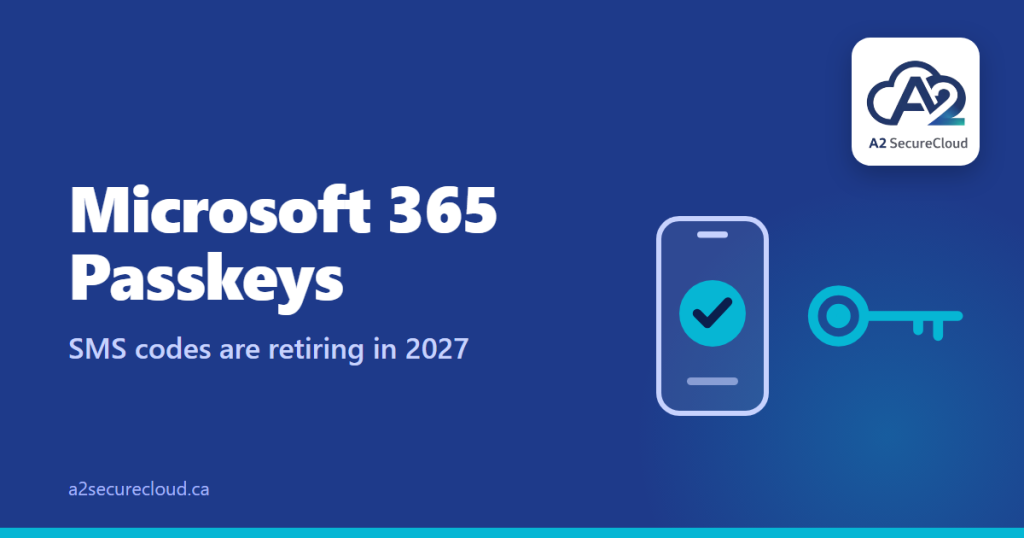
That isn’t a glitch. It’s a change c has announced, and Microsoft 365 passkeys are replacing texted codes in stages. Here’s what it is, who it affects, and a simple plan for a small business.
What’s changing
Microsoft is retiring its own SMS and voice-call sign-in methods in Microsoft Entra ID, the identity system behind Microsoft 365. In Microsoft’s words, SMS and voice are “no longer positioned as secure authentication methods.” Its recommended replacement is passkeys.
The timeline on Microsoft’s page, last updated in September 2026:
- September 1, 2026: passkeys became the default sign-in experience. Users who are set up for SMS or voice are automatically enabled for passkeys and are prompted to register one when they sign in. By default, they can snooze that prompt.
- February 1, 2027: Microsoft-provided SMS and voice authentication is retired for all users except Global Administrators and external users. After that date, anyone whose only MFA method is SMS or voice must register a passkey at sign-in. The prompt blocks access until they do.
- July 1, 2027: the same retirement applies to Global Administrators and external users.
Microsoft also says organizations with a genuine need to keep SMS or voice can set up a telephony provider through its Security Store. There’s a temporary way to delay the automatic passkey rollout until February, but Microsoft says there’s no opt-out from the retirement itself.
Dates like these can change, so check Microsoft’s page for the current version.
What are Microsoft 365 passkeys, in plain English?
A passkey replaces a code you type with a cryptographic key that lives on your device (or in a synced credential store) and is unlocked with your face, fingerprint, or PIN. Nothing is texted to you, and there’s no code for anyone to steal. Microsoft describes passkeys as resistant to phishing, SIM-swap, and replay attacks.
That matters because of how attackers get around MFA today. The Canadian Centre for Cyber Security notes that threat actors have bypassed MFA using techniques like MFA fatigue, token theft, and machine-in-the-middle attacks, often through fake links or texts made to look legitimate. It recommends phishing-resistant MFA, with FIDO-based options strongly recommended.
Who this affects
Any business using Microsoft 365 where staff verify their sign-in with a text message or phone call. For a small business, that’s probably a lot of people, since SMS is the method many teams picked because it was easy.
It’s worth knowing even if you don’t manage IT yourself, because the first sign you’d get is a staff member who can’t sign in.
A calm plan for a small business
1. Find out who uses SMS or voice
Your Microsoft 365 administrator can check which users are set up for text or phone verification. Microsoft’s page links to a script that lists them.
2. Decide which sign-in method you’ll use
Microsoft supports synced passkeys (saved in a credential manager and available across a person’s devices) and device-bound passkeys (such as one stored in Microsoft Authenticator, Windows Hello, or a hardware security key). Microsoft suggests security keys for highly regulated industries or users with elevated privileges.
3. Start with administrators and finance
These accounts matter most, and they’re the ones attackers aim for first.
4. Tell your team before it happens
A short message explaining what’s changing, why, and what to do takes the surprise out of it. Microsoft recommends a simple sequence: announce it, tell people how to register, then send a reminder.
5. Give everyone a backup way in
Think about people who lose a phone, travel, or share a device. Plan how they’ll recover access before they need to.
6. Test with one person first
Have one person set up Microsoft 365 passkeys and sign in a few times, then roll out to the rest.
One caution: don’t remove text-message sign-in until each person has a working alternative.
Taking away a method before its replacement is in place is how people get locked out.
Things to check before you start
- People without a smartphone, or on shared devices
- Shared accounts, which are a good reason to replace them with individual ones
- Guests and contractors signing in to your tenant, who follow their own date
- Anyone who travels, and what happens if they lose their device abroad
Why not just wait?
You could, and many businesses will. But passkeys are generally a smoother experience than typing codes, and a planned rollout of Microsoft 365 passkeys in October is a much easier day than a forced one in February. It’s also a good moment to ask a broader question: which of your accounts are protected by something an attacker could trick someone into giving away?
How A2 SecureCloud helps
For our managed clients, we check who’s still on SMS or voice, plan the move to Microsoft 365 passkeys, support your team through registration, and set up recovery options, so the change happens before Microsoft’s deadline instead of at sign-in. If you’d like a straightforward look at where your Microsoft 365 setup stands, our free IT assessment takes about three minutes.
Or email us at info@a2securecloud.ca.
A2 SecureCloud is a Canadian-owned managed IT and cybersecurity company serving small businesses across Canada, with on-site support in Durham Region, Ontario.
Sources: Microsoft: Passkeys by default and retirement of Microsoft-provided SMS and voice authentication, Passkeys (FIDO2) in Microsoft Entra ID, Plan a phishing-resistant passkey deployment. Canadian Centre for Cyber Security: Secure your accounts and devices with MFA (ITSAP.30.030).